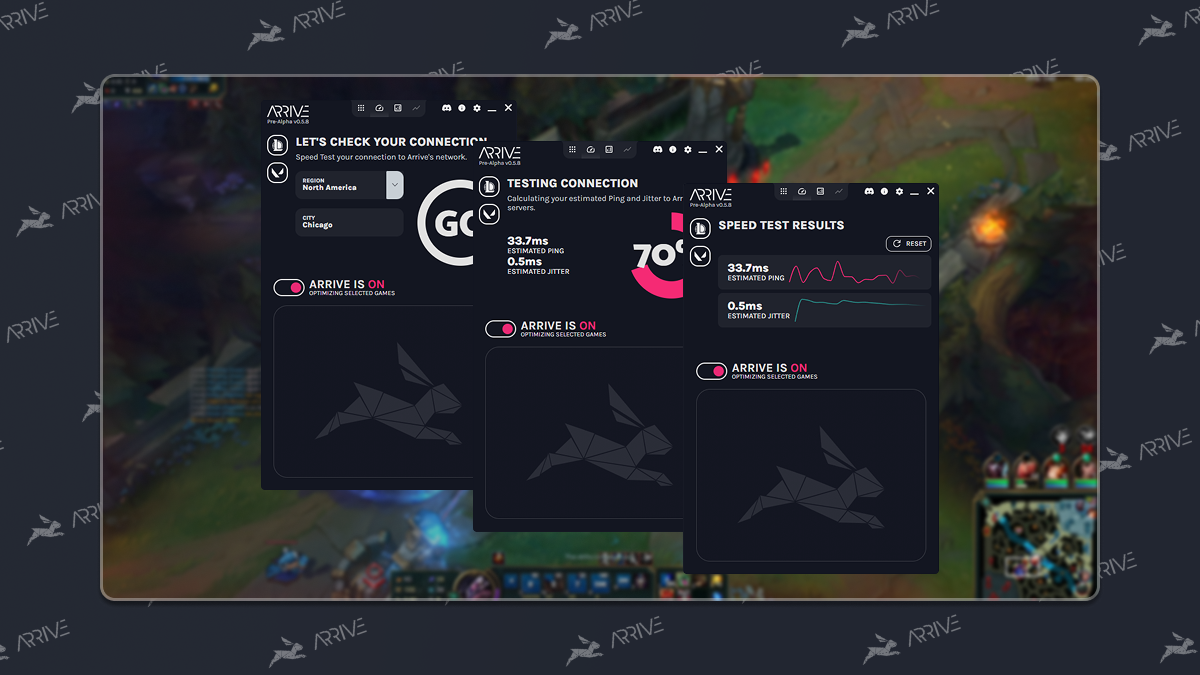
-
Download and Install
If you've already installed Arrive, skip this step!
Download Arrive
Note: Arrive requires Overwolf. If you don't have Overwolf, then it will be installed automatically with Arrive.
-
Select Your Games and Servers
Customize your servers for League and Valorant!
Click the "Enable (GameName)" toggle to enable Arrive for specific games.
League of Legends
-
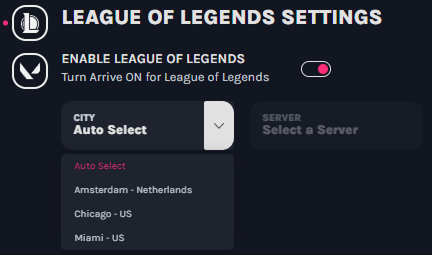
Let Arrive auto-select the best server it detects for your internet connection, or manually choose a specific Arrive server.
Valorant
-
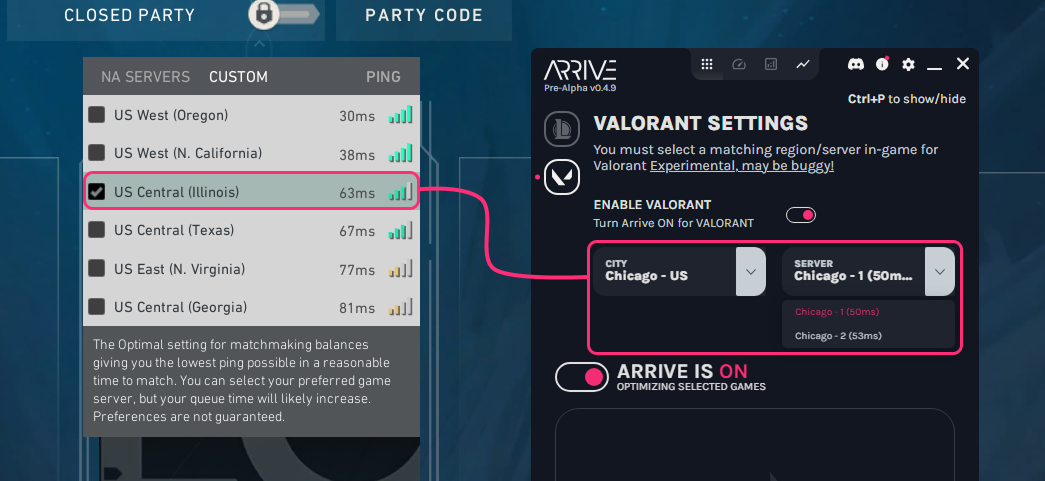
Make sure the Arrive server matches (or is geographically closest to) your Valorant server selection for optimal performance. Otherwise you could experience drastically high ping.
For example, if you are playing on US Central (Illinois) then you should select one of the Chicago servers in the Arrive app.
Valorant Notes:
- For Valorant specifically, the Arrive client can only display the ping from our servers to the user. Due to current limitations, we cannot measure your actual in-game ping like we do for League, so the ping shown in Arrive may not exactly match what you see in-game.
- Valorant support is still experimental. You may encounter bugs, disconnects, or even higher ping. If you experience any of these, please turn Arrive off to avoid disrupting your game for you and your team.
-
-
Start Your Game
Once Arrive is configured, start your game and the app will begin optimizing your connection routing in the background.
You can monitor your connection quality and see how Arrive is working for your specific setup. Feel free to experiment with the server select if you're not seeing satisfying results on auto-select!
-
Control Arrive Anytime
By default you can toggle the in-game Arrive window with
Ctrl + P(you can change this binding in the settings).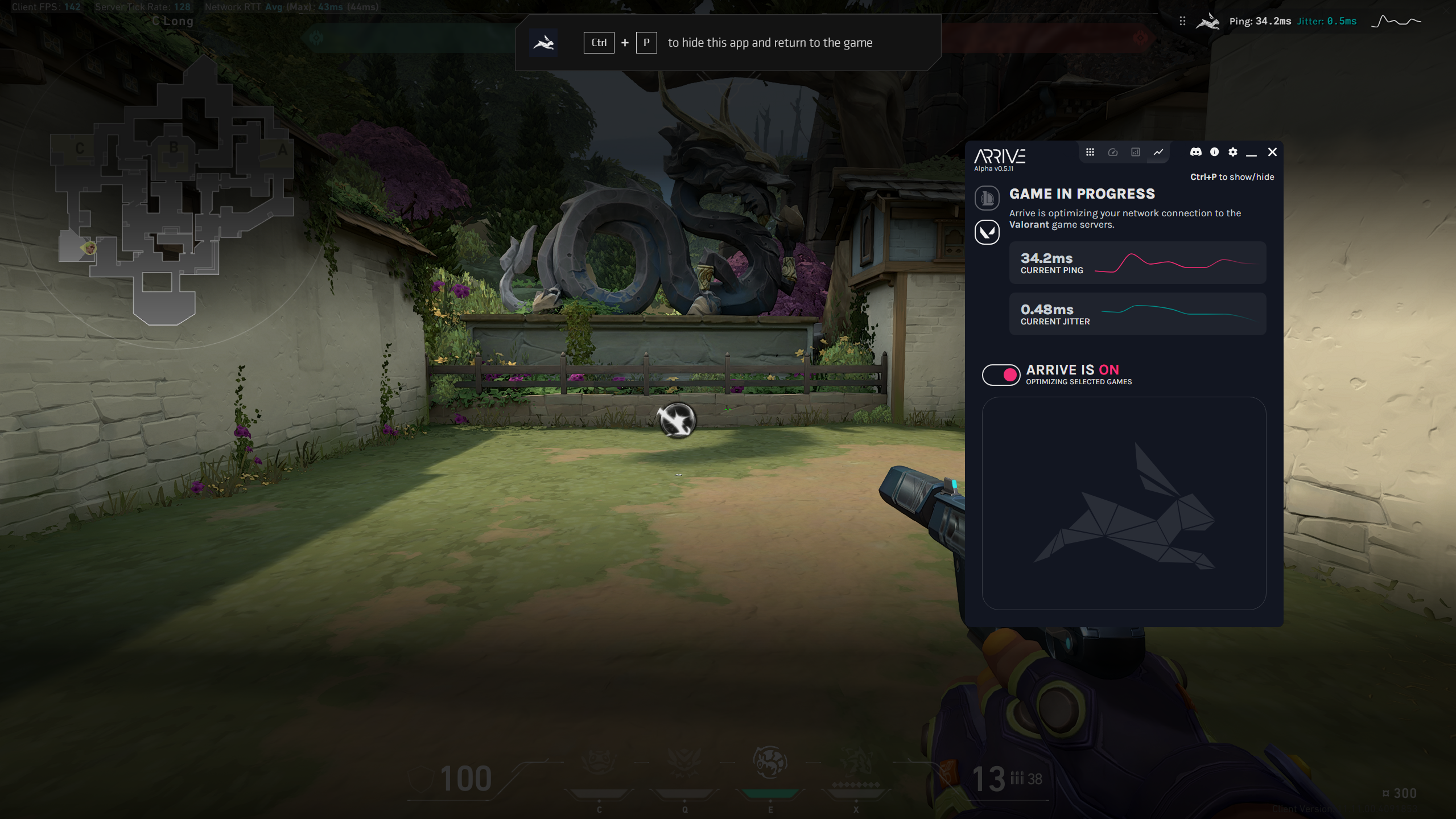
You can start or stop Arrive mid-game without restarting, and you can enable or disable it for specific games. This gives you the flexibility to test different configurations and find what works best for your connection.
In-Game Widget
The Arrive Widget displays your Arrive ping and jitter at a glance.
If Arrive doesn't work for you today, don't give up!
Arrive won't work for everyone. Here's why:
The internet wasn't designed with real-time gaming in mind, and every connection is unique. - Your home network, ISP, and routing paths all affect your personal experience and performance differently.
That said, we are constantly expanding our network, so if you aren't seeing an improvement for your gaming latency with Arrive, then check back in a few months as we add new servers and routes.
We're doing our best!
About our Team
The Arrive team is just a bunch of software dev nerds who love online gaming, hate lag, and are doing the best we can to make this tech work for as many users as possible ❤️.